
 Posted by
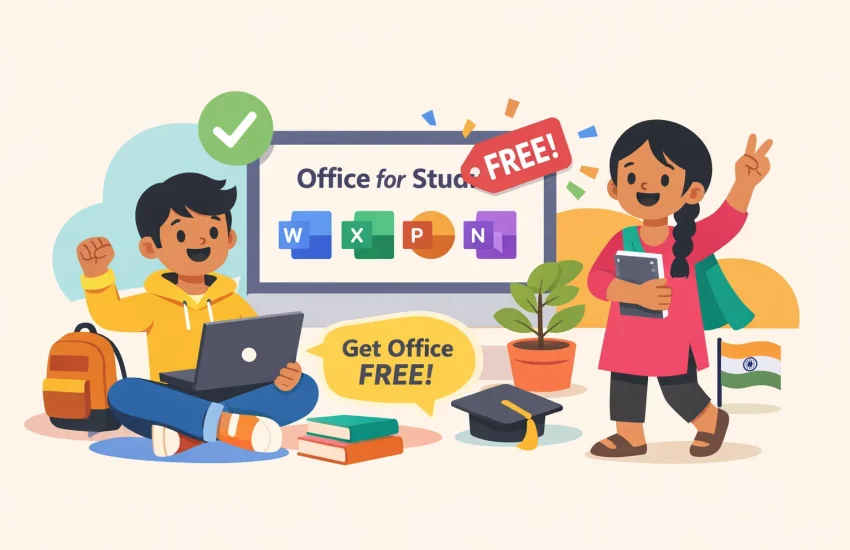
 If you’re wondering how to get Microsoft Office free as a student in India, the answer is simpler than most students expect. Microsoft offers Office to eligible Indian students at no cost through its Education program, yet many students search for cracks and activators before ever discovering it. The legitimate route exists, it works, and getting started takes only a few minutes (though full verification can take longer depending on your institution). Platforms like 10Crack , which curate legal student software options, list Microsoft 365 Education first precisely because so many students land on risky installers they never needed.
This guide covers everything you need to go from zero to a working Microsoft 365 account: eligibility check, exact signup steps, what the free plan actually includes, what to do if your college email doesn’t cooperate, and which alternatives work when Microsoft’s program doesn’t come through.
Who qualifies to get Microsoft Office free as a student in India
Microsoft maintains a global database of accredited educational institutions, and many Indian universities and colleges fall within its scope. UGC-affiliated universities, AICTE-recognized engineering colleges, and their affiliated institutions are commonly eligible, though approval is assessed case by case. Both full-time and part-time students with active enrollment can qualify; the key requirement is that your institution’s email domain is registered in Microsoft’s academic database.
Your institutional email is the single most important thing to check before you do anything else. Microsoft uses the email domain to identify your institution automatically. Addresses ending in .ac.in or .edu.in, or a college-specific domain like @iit.ac.in or @du.ac.in, all work. A personal Gmail or Yahoo account does not qualify, even if you’re genuinely enrolled. If your college hasn’t issued you an institutional email yet, skip to section four, which covers exactly that scenario.
No public list of approved Indian institutions is published by Microsoft. If your institution’s domain is registered, verification can be instant. If it isn’t, you enter a manual review process. Either way, you find out once you begin the signup.
Step-by-step: how to sign up and verify your student status
Eligibility check
Start at microsoft.com/education/products/office. Enter your institutional email address and select “Get started.” Microsoft checks its database immediately: if your institution is already registered under Microsoft 365 Education or Office 365 Education, you move directly to account creation with no delay. If it isn’t recognized, you’ll land in an eligibility verification wizard where you submit additional school domain details for manual review.
Signup and student verification
The student verification window varies. Most institutions receive immediate approval or denial through automated domain checks. A smaller number require manual review, which Microsoft’s official documentation states can take up to 10 business days. In practice, some Indian institutions in 2025 have reported waits of two to three weeks, particularly when Microsoft requests additional documentation through a questionnaire. You can check your status at any time inside the Microsoft 365 admin center: the Billing card on the homepage displays one of four statuses, approved, pending, declined, or domain not added. For details on how Microsoft evaluates and handles academic eligibility, see the guidance on verify academic eligibility.
Verification follow-up
Don’t let your 30-day trial expire if verification is still pending. Microsoft’s guidance is clear: contact support through the admin center before the trial ends, not after, to avoid an interruption in access. Keep your institutional email credentials saved somewhere accessible throughout this window, since you’ll need them repeatedly.
What you actually get with the free plan (and what’s missing)
The free Microsoft 365 Education plan is called Office 365 A1, and it gives you browser-based Word, Excel, PowerPoint, OneNote, and Microsoft Teams. These are not demo versions or view-only tools; they’re fully functional for writing, spreadsheets, and presentations. What they are not is desktop applications. No installer, no offline editing, no program icon on your taskbar.
Files live in OneDrive and open in your browser every session. You need an internet connection each time you work. Offline editing is simply not available on the A1 plan, the biggest practical limitation for students in areas with unreliable connectivity. Mobile apps are included but cap out at basic editing on phones smaller than 10.1 inches; advanced formatting, macros, and complex spreadsheet tools are absent on mobile.
Desktop installs are locked behind the paid A3 and A5 plans, which institutions purchase, not individual students. If a classmate told you they got “full Office for free,” they almost certainly received it through their institution’s paid campus license rather than the A1 free plan. Before you assume you’re limited to A1, check with your college’s IT department or software portal. Many institutions hold A3 or A5 agreements that give enrolled students full desktop access they’ve simply never claimed. For a concise comparison of paid Microsoft 365 subscriptions versus the free web apps, see Microsoft’s article on the difference between a paid subscription and the free web apps.
The web apps work across any device with a browser, so there’s no device limit, laptop, phone, or tablet all work equally on the free tier. For most academic tasks, including essays, reports, presentations, and basic data analysis, the browser versions handle everything you need.
What to do if your college email doesn’t work
If your institution isn’t in Microsoft’s database, the eligibility wizard lets you submit additional domain details for manual review. This is the first path to try. Many Indian institutions that don’t receive automatic approval do pass manual review once the domain details are submitted correctly.
If that doesn’t work, Microsoft accepts student ID card uploads as an alternative verification method. Sign up with a personal email at the Office 365 Education page and submit a clear photo of your student ID showing your name, institution name, and valid enrollment dates. This route exists specifically for situations common in India where colleges don’t issue .ac.in email addresses to every student. For more detail on options when you don’t have an institutional email, see guidance on how to prove you’re a student without an edu email. A third route worth knowing is the GitHub Student Developer Pack. Once GitHub verifies your student status through your ID or enrollment proof, you gain access to Azure for Students and a range of associated Microsoft benefits.
If free verification fails entirely, the discounted Microsoft 365 Personal plan is worth considering. Pricing varies by promotion, but the student rate in India typically runs well below the standard price, and periodic offers have included an extended free trial before the discounted rate kicks in. Student status for this discount is verified through your college email or via UNiDAYS. This paid plan gives you full desktop installs on up to five devices plus 1TB OneDrive storage, a significant step up from the web-only A1 plan. Before paying anything, check your college’s IT portal; campus-wide agreements at your institution might already entitle you to desktop access at no personal cost. You can review current college student pricing and offers for India on Microsoft’s site.
Free alternatives if Microsoft 365 doesn’t come through
LibreOffice is the strongest offline option available to any student regardless of eligibility status. It’s a complete desktop productivity suite: Writer handles documents like Word, Calc handles spreadsheets like Excel, and Impress handles presentations like PowerPoint. All three are free, open-source, and fully functional offline. It opens and saves .docx, .xlsx, and .pptx files directly, which makes sharing documents with classmates straightforward for most everyday tasks, though complex formatting, macros, or advanced Excel features may not always translate perfectly. No account, no email, and no verification required.
For cloud-based work, two options cover you completely. Google Docs, Sheets, and Slides need only a personal Gmail account and work entirely in the browser with strong real-time collaboration for group projects. Microsoft Office Online at office.com provides free Word, Excel, and PowerPoint in the browser, tied to any personal Microsoft account, with 5GB of OneDrive storage included. Neither requires institutional verification, making them the immediate fallback for students whose colleges aren’t yet in Microsoft’s database. Both handle everyday academic work well: essays, spreadsheets, presentations, and shared group assignments.
Why legitimate options always beat cracked installers
Students searching for free Office frequently hit crack sites before they find Microsoft’s legitimate program. Security researchers and antivirus vendors have documented how these sites bundle malware, fake activators, and keyloggers inside setup files that look convincingly normal. The file installs, Office appears to work, and the malware runs silently in the background collecting credentials and payment data. The risk is real and well-documented across cybersecurity advisories.
The practical reality is that you don’t need any of it. Between Microsoft 365 Education A1, Office Online, LibreOffice, and Google Docs, a student in India has more clean, functional, free options than ever before. 10Crack maintains a curated list of legal student software deals covering legitimate free and discounted tools available to Indian students, worth bookmarking alongside the Microsoft signup page as a reference for future software needs.
The free Microsoft route covered here costs nothing, requires no shady installer, and gives you a genuine Microsoft account with OneDrive storage. Note that continued access after graduation depends on your institution’s licensing terms, so check with your IT department if long-term access matters to you. The risk-to-benefit calculation on cracked software is obvious once you know these options exist.
How to get Microsoft Office free as a student in India: getting started today
The process is more accessible than most students realize. Check that you have an active institutional email address, visit microsoft.com/education/products/office, enter your email, and follow the verification steps. If your institution is in Microsoft’s database, you could have access to Word, Excel, PowerPoint, and Teams in your browser within minutes. If it isn’t, submit for manual review through the eligibility wizard and prepare a photo of your student ID for alternative verification.
While verification is pending, or if the free plan doesn’t come through, LibreOffice covers your offline needs immediately, and Google Docs or Office Online handles anything browser-based. None of these require waiting, paying, or institutional verification.
Getting Microsoft Office free as a student in India is entirely achievable once you know where to look. If your domain is recognized, access can be instant; if not, expect the process to take a few days to a few weeks. Start with your institutional email and have your student ID photo ready as a backup, those two things are all you need to get the process moving.